How to set up Discord alerts
Expected read time: 4 min
PitchPressure can send live FastPicks alerts to a Discord channel through an incoming webhook. This guide shows how to create the webhook, connect it and test delivery.
In short
To receive FastPicks alerts in Discord, create an incoming webhook for the destination channel, save its URL in PitchPressure Account settings and send a test message. Then enable Discord on the saved FastPick.
On this page
Before you start
- You need access to a Discord server and channel.
- You need permission to manage webhooks.
- You need a saved custom FastPick for filter-trigger alerts.
- Keep the webhook URL private.
Step-by-step setup
Open your Discord server
Open the server where PitchPressure should post alerts. You need permission to manage webhooks in the destination channel.
Open Integrations
Open Server Settings, choose Integrations and then Webhooks. On mobile, webhook management may be easier in the desktop app or browser.
Create a webhook
Choose New Webhook, give it a clear name such as PitchPressure Alerts and select the channel that should receive messages.
Copy the webhook URL
Choose Copy Webhook URL. Treat this URL like a password: anyone who has it may be able to post to that channel.
Connect Discord in PitchPressure
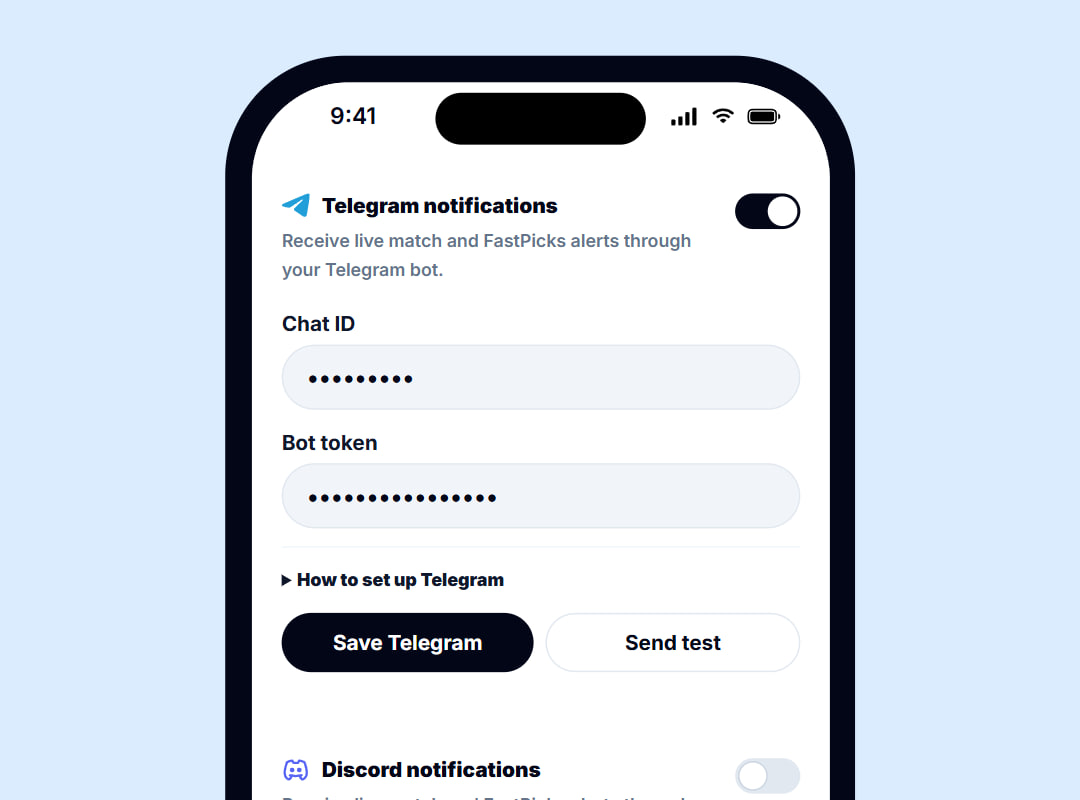
Open Account settings, enable Discord notifications, paste the webhook URL and save your settings.
Send a test message
Use the test button in PitchPressure. A confirmation message should arrive in the selected Discord channel.
Enable alerts for a FastPick
Create or edit a saved custom FastPick, enable Discord for that FastPick and save it.
Troubleshooting
Unknown webhook: the webhook was deleted or regenerated in Discord. Create a new one and update PitchPressure.
No test message: verify the complete URL, save the account settings and make sure the destination channel still exists. If the test works but match alerts do not, check the FastPick’s conditions, active status and selected destination.
Too many alerts: tighten the saved FastPick with a time range, sustained pressure and a confirming statistic.
Discord alerts FAQ
Do I need a Discord bot?+
No. PitchPressure uses a Discord incoming webhook, so you do not need to create or host a bot.
Where do I find the Discord webhook URL?+
Open Server Settings, Integrations, Webhooks, select or create a webhook and choose Copy Webhook URL.
Why does the test alert fail?+
Check that the webhook still exists, points to a channel you can access and was copied completely. Recreate it if Discord reports that it is invalid.
Can I use a different channel for alerts?+
Yes. Edit the webhook in Discord and select another channel, or create a new webhook and update it in PitchPressure.
Help guide details
- Published
- 22 September 2026
- Last edited
- 22 September 2026