How to set up Telegram alerts
Expected read time: 4 min
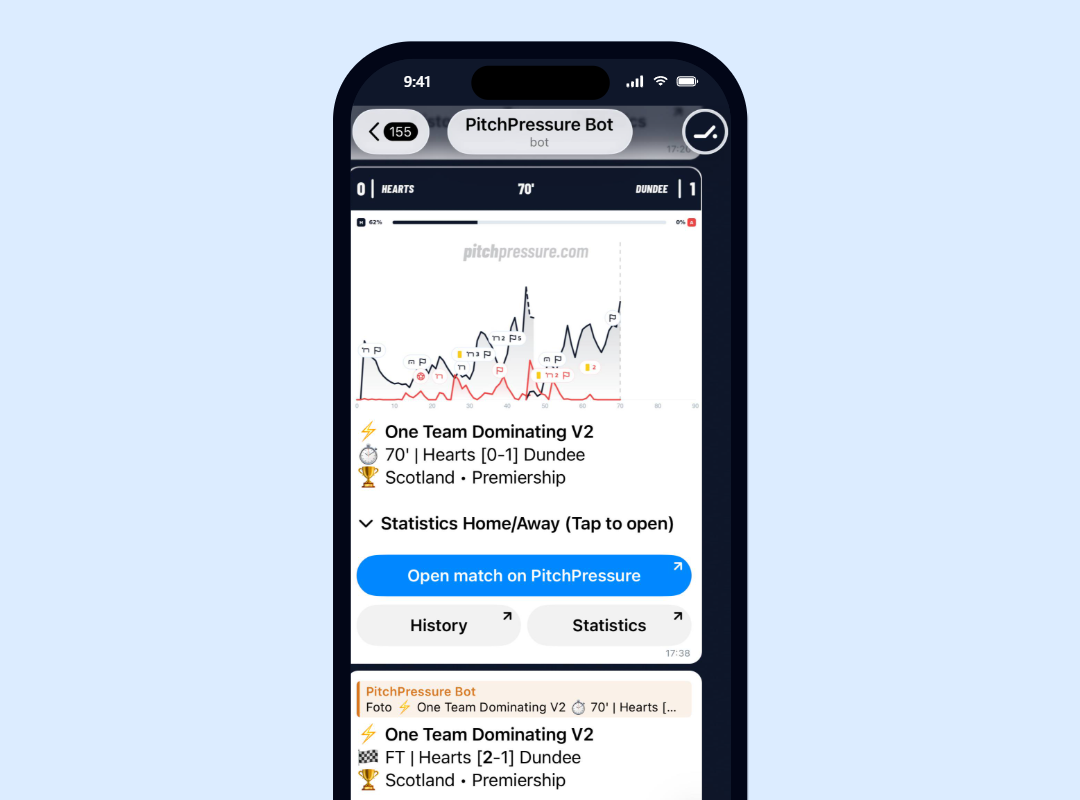
PitchPressure can send Telegram alerts when a saved custom FastPick matches a live fixture. This guide walks through creating a bot, finding your chat ID and testing the connection.
In short
To receive FastPicks alerts in Telegram, create a bot with BotFather, start its chat, enter the bot token and chat ID in PitchPressure Account settings, and send a test message. Then enable Telegram on the saved FastPick.
On this page
Before you start
- You need a Telegram account.
- You need access to the PitchPressure Account page.
- You need a saved custom FastPick if you want alerts from filter triggers.
- Keep your bot token private. Treat it like a password.
Step-by-step setup
Open BotFather in Telegram
Open the official BotFather bot in Telegram. BotFather is the Telegram tool used to create and manage bots.
- Use the official BotFather link below.
- Press Start or send /start.
- Keep this chat open while you create the bot.
Create a new bot
Send /newbot to BotFather and follow the questions.
- Choose a display name, such as PitchPressure Alerts.
- Choose a username ending in bot, such as MyPitchPressureAlertsBot.
- BotFather will return a bot token.
Save the bot token
Copy the token exactly as BotFather gives it to you.
- It usually looks like 123456789:ABCdefYourLongToken.
- Do not share this token publicly.
- If a token leaks, use BotFather to revoke it and create a new one.
Start a chat with your bot
Open your new bot in Telegram and press Start.
- This is required before the bot can send messages to you.
- Send a short message such as test if needed.
- If you use a group, add the bot to the group first.
Find your chat ID
Open userinfobot in Telegram to quickly see your personal Telegram user ID.
- Open the official userinfobot link below.
- Press Start.
- Copy the numeric Id value that the bot returns. This is the chat ID for one-to-one alerts.
Connect Telegram in PitchPressure
Open Account settings in PitchPressure and paste your bot token and chat ID into the Telegram section.
- Save the settings.
- Use the test button to send a test message.
- If the test arrives, Telegram is ready for FastPicks alerts.
Enable alerts on a saved FastPick
Open FastPicks, create or edit a custom filter, turn on Telegram, then save the filter.
- Pre-made filters are for scanning only.
- Telegram alerts run on saved custom FastPicks with alerts enabled.
- Keep filters focused so alerts stay useful.
Find your chat ID
For a private one-to-one alert setup, use userinfobot instead of the Telegram API URL. Open the bot, press Start and copy the numeric Id value.
Paste that ID into PitchPressure together with your bot token. For group alerts, Telegram uses a group chat ID instead of your personal user ID.
Troubleshooting
If the test message arrives but a match alert does not, check whether the FastPick actually matched. Review its conditions, active status and selected alert channel.
The test message does not arrive
Check that you pressed Start in the chat with your bot and that the chat ID is copied correctly.
userinfobot shows a user ID, but my alerts go to a group
For a group, add your alert bot to the group and contact support if you need help finding the group chat ID. Group IDs often start with a minus sign.
The bot token was shared by accident
Open BotFather, revoke the token and create a new one. Then update PitchPressure with the new token.
Alerts are too noisy
Tighten your FastPick rules. Add Match Time, Recent Pressure or a confirmation stat such as Shots on Target or Corners.
Telegram alerts FAQ
Do I need my own Telegram bot?+
Yes. Using your own bot gives you control over where PitchPressure sends alerts and makes the setup more reliable.
Where do I find my Telegram chat ID?+
For one-to-one alerts, open userinfobot in Telegram, press Start and copy the numeric Id value it returns.
Can I send alerts to a Telegram group?+
Yes. Add the bot to the group and use the group chat ID. If you cannot find the group ID, contact support and we can help you check it safely.
Which filters can send Telegram alerts?+
Telegram alerts run on saved custom FastPicks where Telegram alerts are enabled.
Help guide details
- Published
- 16 May 2026
- Last edited
- 23 September 2026